CSC105 Using the SAM MindTap Reader and Taking Quizzes
Start from the Activity List tab, and make sure all of the content below it (Exams, Training, Projects, SAM Paths, Readings, Always Available) are checked. Scroll to the bottom of the Activity List to find links to both books.
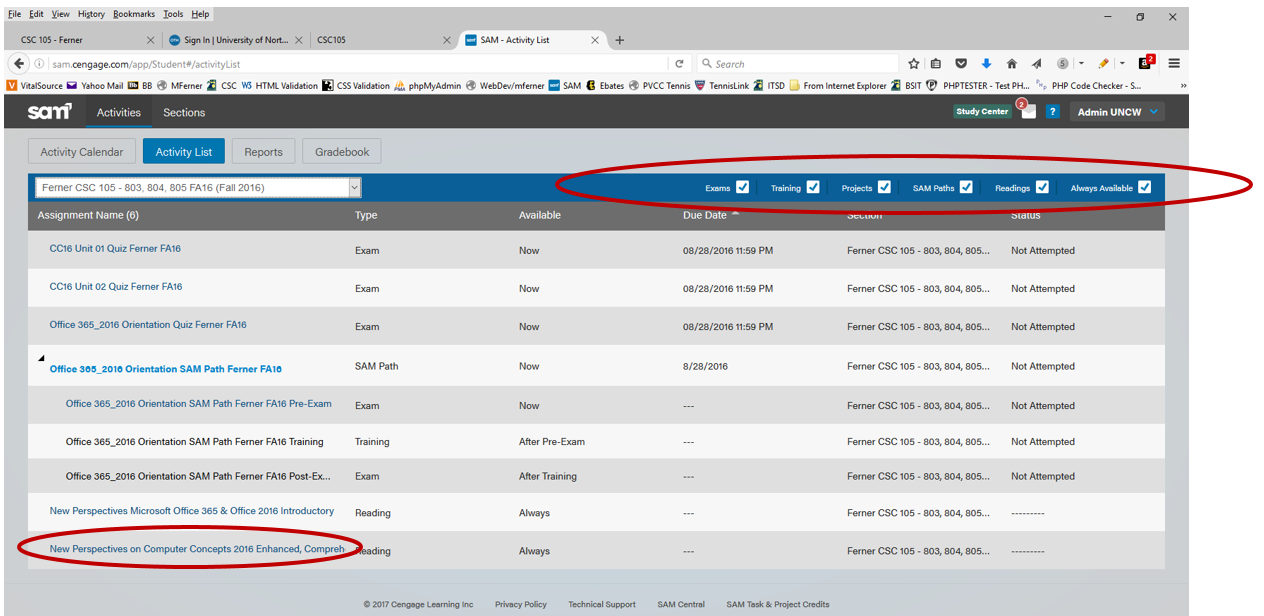
Select the Computer Concepts book, and the MindTap Reader will open to the Table of Contents. This is the e-book version of the text. It is not necessary to complete any of the exercises from the book. For more information about using MindTap effectively see http://www.wadsworthmedia.com/tlc/MindTap/MindTap_BasicNavigation.html
**If you don’t see the e-book, it may have been stopped by the pop-up blocker (look in the upper right corner of the screen for that notice) OR it may have opened in a new window behind the current one.
**If you are using Internet Explorer you need to allow cookies from Cengage as follows:
- From the Tools menu, select Options
- Click the Privacy tab
- If Turn on Pop-up Blocker is checked, click Settings
- Click Sites
- In the Address of website field, enter cengage.com
- Click Allow, OK, OK
Click on the link for the chapter you are studying, complete
the reading, and take the chapter quiz. If
you don’t see it after a second or two, it may have launched in a new window
behind the current one.
Important note about quizzes:
The Save Answer button saves your answer to that question only. It does not submit your quiz. Once you submit an answer, it can’t be
changed. If you want to skip a question
and come back to it, use the Show Task List button/menu in the lower left
corner of the screen. If a question has
not been submitted, it will be counted as incorrect. Each question must be submitted to be scored.
Once
all questions have been answered, the quiz will present any incorrect questions
for a second (and third if necessary) attempt.
The quiz will then submit automatically.
To see specific results regarding your exam, training, and project work, do the following:
a. Click on Reports tab on the navigation bar. The Reports screen will display, listing your completed assignments. There may be several seconds, possibly one or two minutes, until this is available.
b. Locate the item you want to review, and select Study Guide on the left side of the screen.