|
1
|
|
|
2
|
- Double click the my computer icon, usually located in the upper
left-hand corner of the screen.
- The my computer icon looks like this:
- If you cannot find the my computer icon, click on start and choose the
settings option and click on control panel.
|
|
3
|
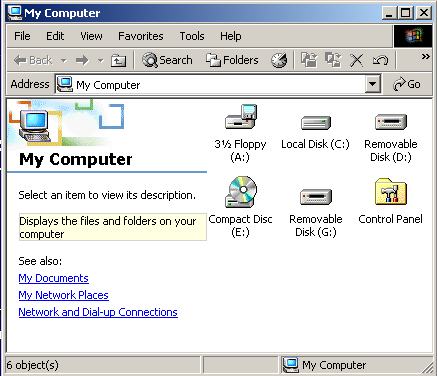
- A screen similar to this should appear.
|
|
4
|
- In the my computer screen double click the control panel icon.
- The control panel icon looks like this.
|
|
5
|
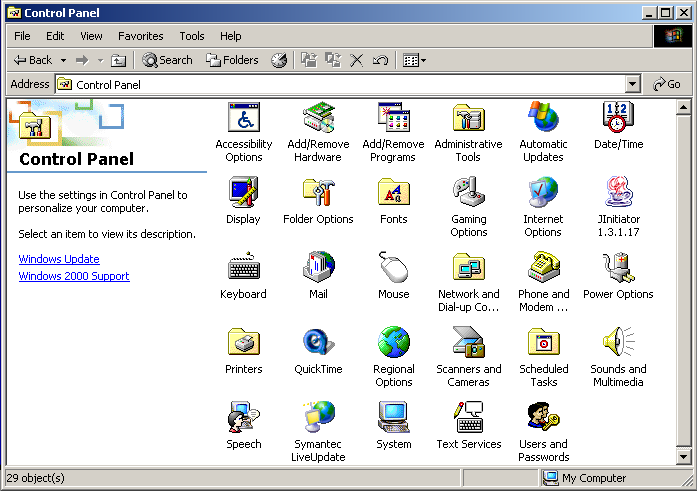
- A screen similar to this should appear.
|
|
6
|
- Double click the Internet Options icon located in the control panel
screen.
- The Internet Options icon looks like this:
|
|
7
|
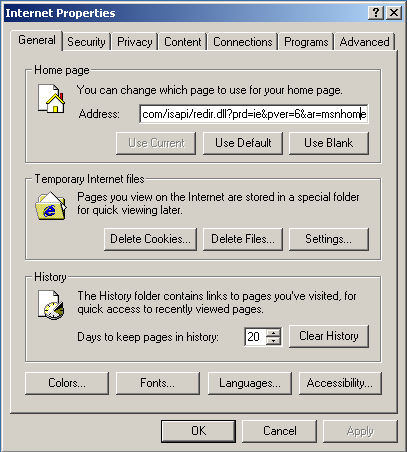
- A screen similar to this should appear.
|
|
8
|
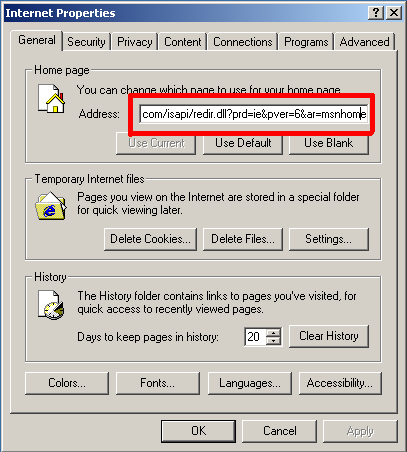
- On the Internet Properties screen in the homepage section, highlight the
url located in the address bar at the top of the screen and press
delete.
- Type in the Teaching Fellows homepage url in the address bar.
- http://www.uncw.edu/tfellows
|
|
9
|
- Highlighted in red is where you are supposed to change the url.
|
|
10
|
- Once you have the new url in the address space, click the enter button
on the keyboard.
- The screen should close itself, if not click the ok button, which looks
like this:
|
|
11
|
- Congratulations!
- You have just changed your homepage!
|

 Notes
Notes